Securing the VMware Adapter
There are two types of users associated with the VMware Adapter, Runtime Users and Schedulers. You maintain definitions for both types of users from the Users pane.
Runtime Users
Runtime users in the context of VMware jobs represent those users and passwords required for HTTPS Authentication. VMware operations require authentication against a valid VMware user as defined by a virtual infrastructure administrator. These users will need to be defined as runtime users.
Schedulers
Schedulers are those users who will define and manage VMware jobs.
There are three aspects of a user profile that grant and limit access to scheduling jobs that effect VMware:
-
Security policy that grants or denies add, edit, delete and view capabilities for VMware jobs.
-
Authorized runtime user list that grants or denies access to specific HTTPS authentication accounts for use with VMware jobs.
-
Authorized agent list that grants or denies access to specific VMware Adapter connections for use when defining VMware jobs.
Defining Runtime Users
To define a runtime user:
-
Expand the Administration node from the Navigation pane and click Runtime Users to display the defined users.
-
Right-click Runtime Users and choose Add Runtime User from the context menu (Insert mode).
OR
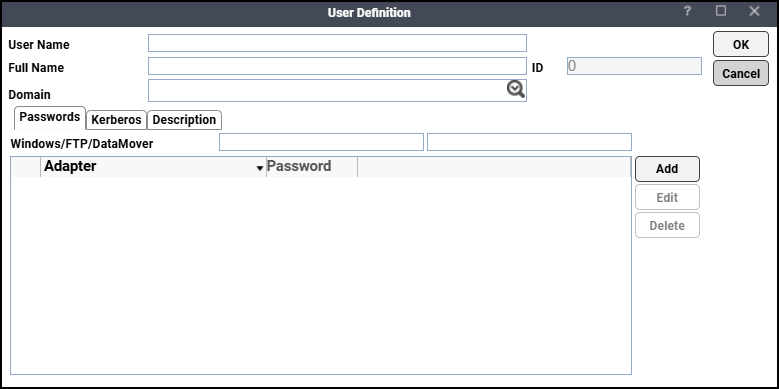
Click Add on the TA menu bar. The User Definition dialog appears.
-
Enter the new user name in the User Name field.
-
Enter the full name or description associated with this user in the Full Name field.
-
Click the Domain field and choose a domain associated with the user account required for authentication, if necessary.
-
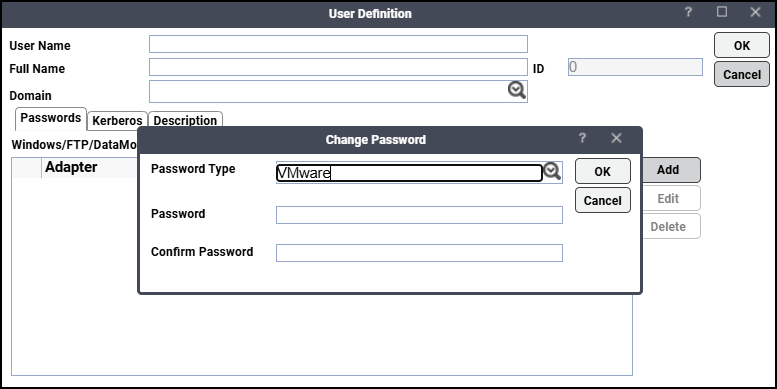
Click Add on the Passwords tab to define this user as a runtime user for VMware jobs.
-
Choose VMware from the Password Type list.
-
Enter a password along with confirmation in the Password and Confirm Password fields.
Note: Only those users with a password specified for VMware will be available for use with VMware jobs. The password might be the same as the one specified for Windows/FTP jobs.
-
Click OK to return to the User Definition dialog. The new password record appears on the Passwords tab.
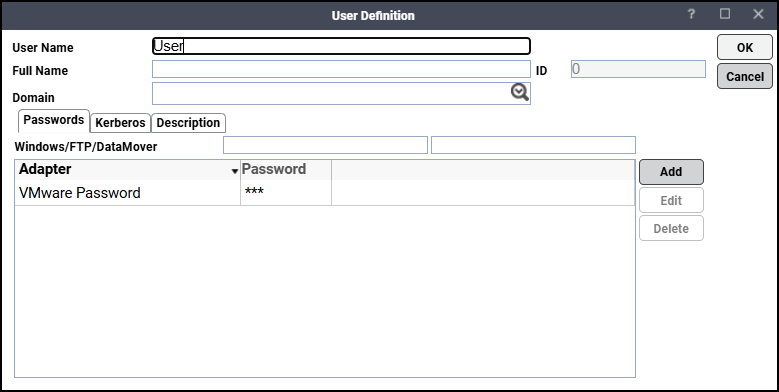
Note: If you have updated the passwords and are experiencing issues with running jobs or events, we recommend disabling and re-enabling the connection to ensure everything works properly.
-
Click OK to add or save the user record in the TA database.
Note: For more information about the User Definition dialog, see Users.
Authorizing Schedulers to Work with VMware Jobs
Defining a Security Policy for VMware Jobs
To define a Security Policy that authorizes access to VMware jobs:
-
Click Administration > Security Policies on the Navigation pane to display the Security Policies pane.
-
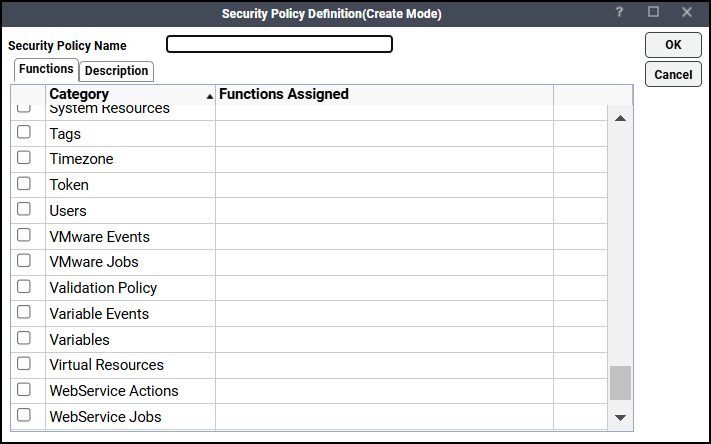
Right-click Security Policies and click Add Security Policy on the context menu. You can also right-click a defined security policy in the Security Policies pane and click Edit Security Policy. The Security Policy Definition dialog appears.
-
Enter a name for the policy in the Security Policy Name field.
-
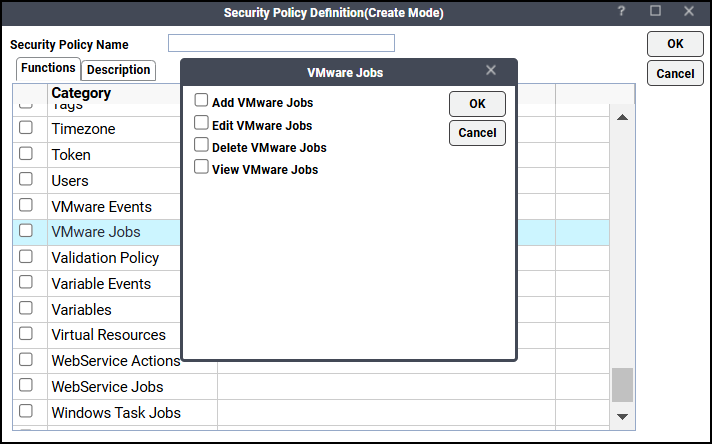
Scroll to the VMWare Jobs and Events category on the Functions tab, double-click the VMware Job section.
-
Choose the checkboxes next to the functions that are to be authorized under this policy (Add, Edit, Delete, and View VMWare Jobs or Events).
-
Click OK on the VMWare Jobs dialog.
-
Click OK to save the policy.
Defining VMware TA Users
To define a TA user to work with VMware jobs:
-
Expand the Administration node on the Navigation pane and click Interactive Users to display the defined users.
-
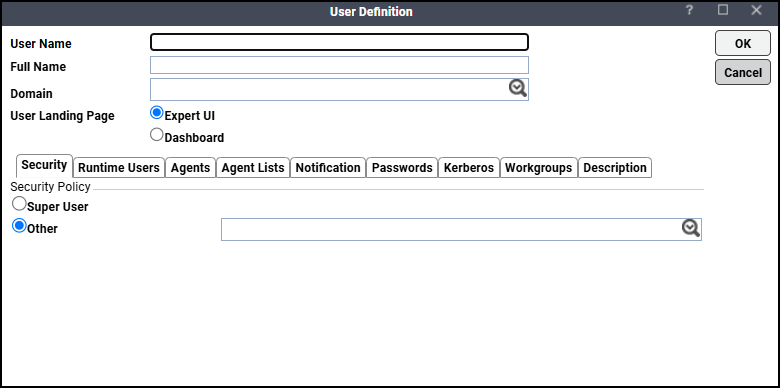
Right-click Interactive Users and choose Add Interactive User from the context menu (Insert mode). You can also right-click a user in the Interactive Users pane and choose Edit Interactive User from the shortcut menu (Edit mode). The User Definition dialog appears.
-
Enter the new user name in the User Name field if this is a new user definition.
-
Enter the full name or description associated with this user in the Full Name field.
-
Click the Domain field and choose a domain associated with the user account required for authentication, if necessary.
-
Click the Other option on the Security tab and then choose the security policy that includes authorization for VMware jobs.
-
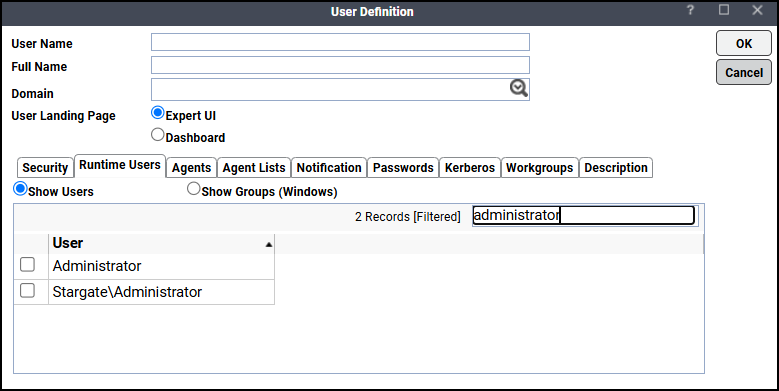
Click the Runtime Users tab.
-
Choose the VMware users that this scheduling user may use for VMware authentication in VMware jobs.
-
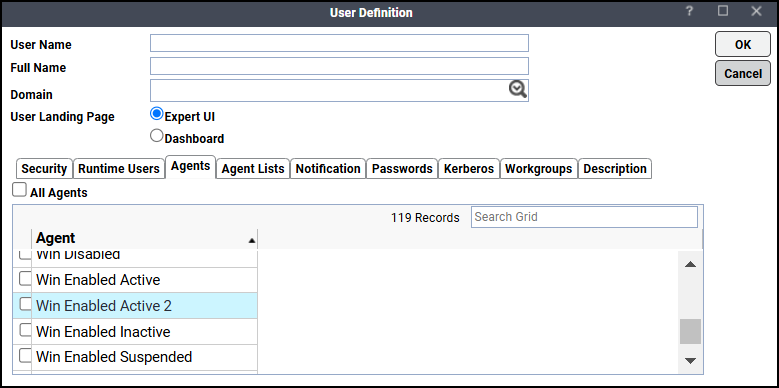
Click the Agents tab.
-
Choose the checkboxes for the VMware connections that this scheduling user can access when scheduling jobs.
-
Click OK to save the user definition.